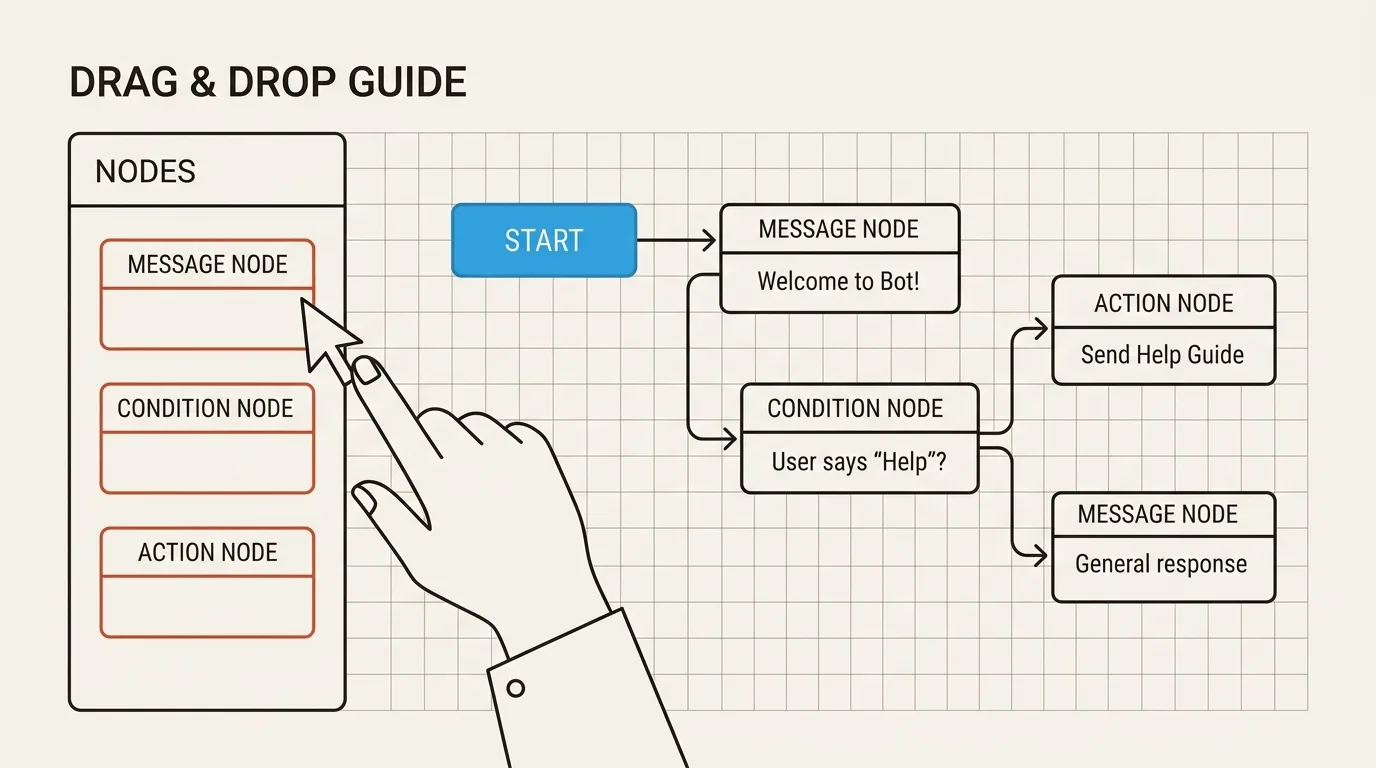
Building a Telegram bot used to require writing Python code, hosting scripts on a server, and managing webhook endpoints. If a message flow needed a small change, you had to edit code and redeploy.
Visual scenario editors changed the way this works. You can now design complete Telegram bot conversations on a drag-and-drop canvas. You build the flow visually, define how each step leads to the next, test the logic, and publish updates without writing code.
This guide walks you through building a Telegram bot flow visually from scratch using TeleGo.
What Is a Visual Scenario Builder?
A visual scenario builder is an editor where each step of a Telegram conversation is represented by a block, or node. You build the conversation by placing blocks on a canvas and defining how one step leads to the next.
Instead of writing if/else conditions in code, you use a Condition node to send users down different paths depending on whether the rule matches.
Why Use a Visual Bot Builder?
- See the whole flow: You can see the conversation on one canvas, including branches and fallback paths.
- No Coding Required: Anyone on your marketing, sales, or support team can edit messages and update flows.
- Live Testing: You can test the full flow in Telegram before making it available to real users.
- Quick publishing: When your flow is ready, click Publish to make the changes live in Telegram.
All Node Types in TeleGo
TeleGo nodes are grouped into several categories. Here's what's available in the editor:
Interaction Nodes
| Node Type | What It Does | Real Example |
|---|---|---|
| Start Node | The required entry point for every scenario. Starts the scenario when a user sends /start or opens a deep link. | A user clicks t.me/your_bot?start=promo and enters a promotional funnel. |
| Message Node | Sends text, media, files, buttons, menus, and questions. It also supports Telegram Stars payment buttons and Calendar Slot Picker cards. | Sending a welcome message with inline buttons View Services and Book a Call |
The Message Node handles most user-facing interactions in TeleGo. It supports several card types inside a single node:
- Text Cards — send formatted text with inline buttons (Flow, URL, or Payment).
- Media Cards — send images, videos, audio, or documents.
- Question Cards — ask a question, wait for a reply, and save the answer to a variable.
- Calendar Slot Picker — show available dates and time slots from your connected Google Calendar. Users pick a slot, and the bot creates a real calendar event.
Logic Nodes
| Node Type | What It Does | Real Example |
|---|---|---|
| Condition Node | Splits the flow into Match and No Match paths based on rules you define, such as tags, variables, payment status, or user data. | If the user has the VIP tag → send the exclusive offer. Otherwise → send the general catalog. |
| Random Node | Randomly routes users down different paths based on percentage weights you assign. Useful for A/B testing and randomized content. | Split traffic 50/50 between two different welcome messages to measure which converts better. |
| Delay Node | Pauses the scenario for a set duration (minutes, hours, or days) before moving to the next step. | Wait 24 hours before sending a follow-up message after a free PDF download. |
| Schedule Node | Pauses the flow until a specific calendar date and time is reached. | Schedule a webinar reminder for 9 AM on March 15. |
Data Nodes
| Node Type | What It Does | Real Example |
|---|---|---|
| Actions Node | Performs background tasks without sending a message to the user, such as adding tags, updating variables, triggering human handoff, sending webhooks, tracking conversions, or calling external APIs. | After a user completes a quiz, add the Qualified Lead tag, save the score to quiz_score, and send a webhook to your CRM. |
| Formula Node | Performs math calculations or text transformations and saves the result to a variable. | Calculate a discounted price: {%product_price%} * 0.85 and save to final_price |
AI Nodes
| Node Type | What It Does | Real Example |
|---|---|---|
| AI Agent Node | Generates a response using AI and, if enabled, your Knowledge Base. The result is saved to a variable and can be sent to the user by the next Message Node. Supports configurable presets (model, tone, system prompt), conversation memory, and input modes (wait for message, use last message, or read from a field). | A support bot answers product FAQ questions using your uploaded PDF manual. You can route unanswered or unsupported requests to a human handoff step. |
Utility Nodes
| Node Type | What It Does | Real Example |
|---|---|---|
| Note Node | A visual sticky note on the canvas for documentation, reminders, or team collaboration. It's only for organization and documentation and doesn't affect the bot's behavior. | Labeling a complex branch: "This path handles VIP users only". |
Step-by-Step: Building Your First Bot Flow
Here's a simple lead qualification flow you can build in TeleGo.
Step 1: The Start Node (/start)
Every Telegram bot scenario begins with a Start Node. This is the entry point that starts the scenario when the user sends /start.
When a user triggers /start, TeleGo then moves the user to the next step in the flow.
Step 2: Add a Welcome Message Node
Add a Message Node after Start and set it as the next step.
In the node settings, write your welcome greeting and add two inline keyboard buttons:
View ServicesBook a Consultation
How the flow looks so far:
Start (/start) -> Message Node ("Welcome!") -> [View Services | Book Call]
Step 3: Add a Condition Node to Branch the Path
Sometimes the next step depends on information you already know about the user. This is where a Condition Node comes in.
For example, after a user selects Book a Consultation, you can check whether they already have the Customer tag:
- If the user has the
Customertag → Route to Path A - If not → Route to Path B
Step 4: Capture Contact Details & Save to CRM
For Path A, add a Message Node to collect the user's contact details. You can request their phone number with Telegram's built-in contact sharing button or collect their email address with a Question card.
After the user provides their contact details, add an Actions Node to:
- Action: Save phone number to user field
phone_number. - Action: Add tag
Consultation Lead. - Action: Send a webhook notification to your team's external system.
Step 5: Test and Publish
Before making your bot public, use Test mode in the Scenario Editor. A test window opens where you can interact with your bot just like a real subscriber.
Go through each path and make sure every branch leads where you expect. Once everything works, click Publish to make the updated flow live.
Real Example: A Coaching Lead Qualification Scenario
Here is how an online productivity coach uses a visual bot flow to filter consulting inquiries:
- The user taps
/start: Bot sends a free PDF guide on time management. - Delay 10 Minutes: Bot sends a follow-up: "Did you download the guide? What is your biggest productivity bottleneck?"
- The user selects:
Team Delegation. - Condition Check: Bot asks: "How large is your team?"
- If > 5 people: Bot opens a Calendar Slot Picker card so the lead can book a 1-on-1 strategy call directly from Telegram.
- If solo: Bot sends a self-paced video course link.
- Actions Node: An Actions Node saves the team size and adds the
Qualified Leadtag to the user's profile.
Best Practices for Designing Clean Bot Scenarios
To keep your scenario canvas readable as your bot grows:
- Keep Related Steps Together: Organize welcome sequences, qualification logic, and support fallbacks into visual clusters.
- Add Fallback Paths: Ensure that if a user types something unexpected, make sure there's a fallback path that takes them back to the main menu or another useful step.
- Keep Messages Short: Break long messages into shorter, easier-to-read parts when it improves the conversation.
- Use Tags at Key Points: Apply tags (like
New Subscriber,Lead,Customer) at key decision points so you can easily segment broadcast campaigns later.
Next Steps
Once the flow is visual, it's much easier to focus on the conversation itself instead of the code behind it.
If you want to see how to set up your account and connect your first bot token, read our guide on how to create a Telegram bot without coding or explore our overview of Telegram bot flow structures.

